Pliro IDE: code, blocks and live preview
The Pliro IDE is the desktop app where you write, run and build Pliro programs. It brings the text editor, visual blocks, project files and live preview together. An IDE is a programming workspace: you can try an idea and see what your program does without switching between several tools.
Download and install
Download for Windows 10/11 (64-bit)
Also available: Pliro IDE for Linux AMD64 (.deb), for supported Debian-based desktop systems with a 64-bit Intel or AMD processor. This is the IDE itself, including the text editor, blocks and live preview. You can start with the free Pliro Learner edition on either platform.
Linux requirements
The Linux package is built on Ubuntu 24.04 with GTK 4 and WebKitGTK 6. Debian 13 and newer systems must satisfy the package’s declared dependencies. Ubuntu 22.04 and Debian 12 are not supported by this build. AMD64 does not mean ARM64: this installer is not for Raspberry Pi.
Install the downloaded .deb with your system’s package manager. From a terminal in the download folder, use the following command, replacing pliro-ide_VERSION_amd64.deb with the exact filename you downloaded:
sudo apt install ./pliro-ide_VERSION_amd64.deb
Then open Pliro from your applications menu. The package manager installs required dependencies and may ask for your administrator password.
These screenshots show the current English interface and source syntax. The Dutch guide uses Dutch captures. Light and dark images follow your wiki theme; click one to open the image.
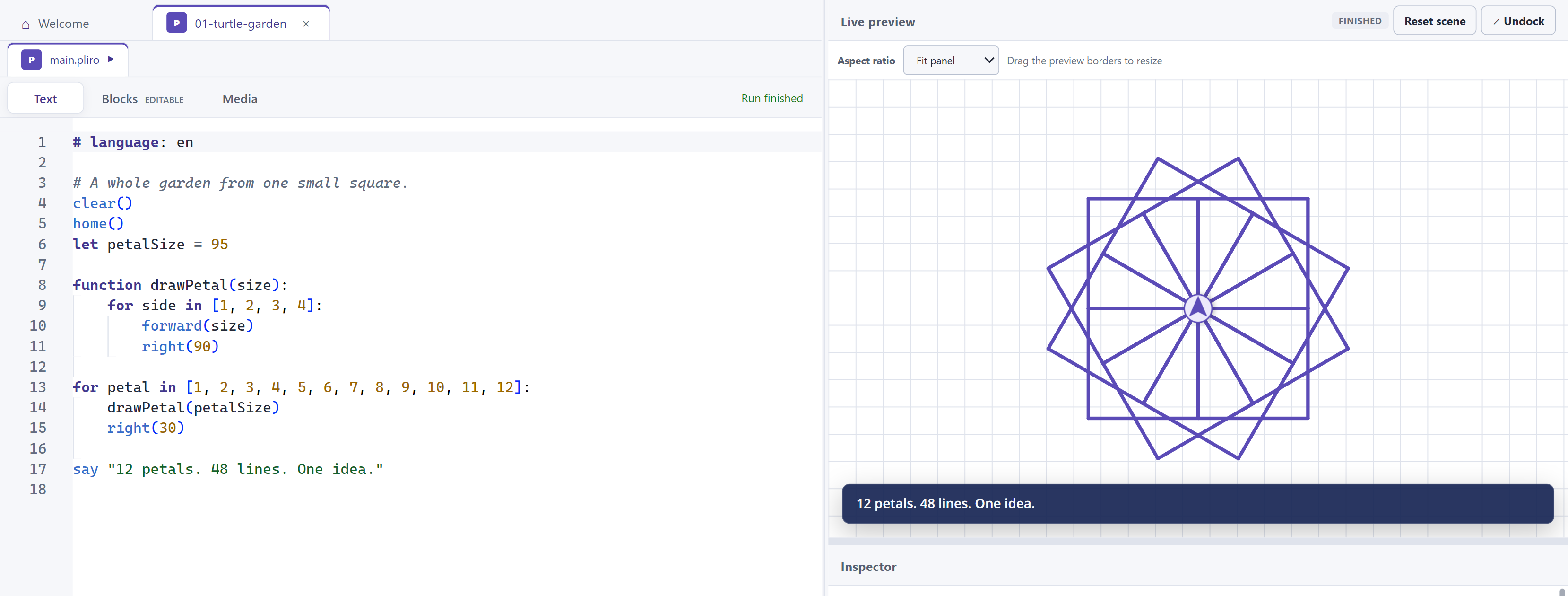
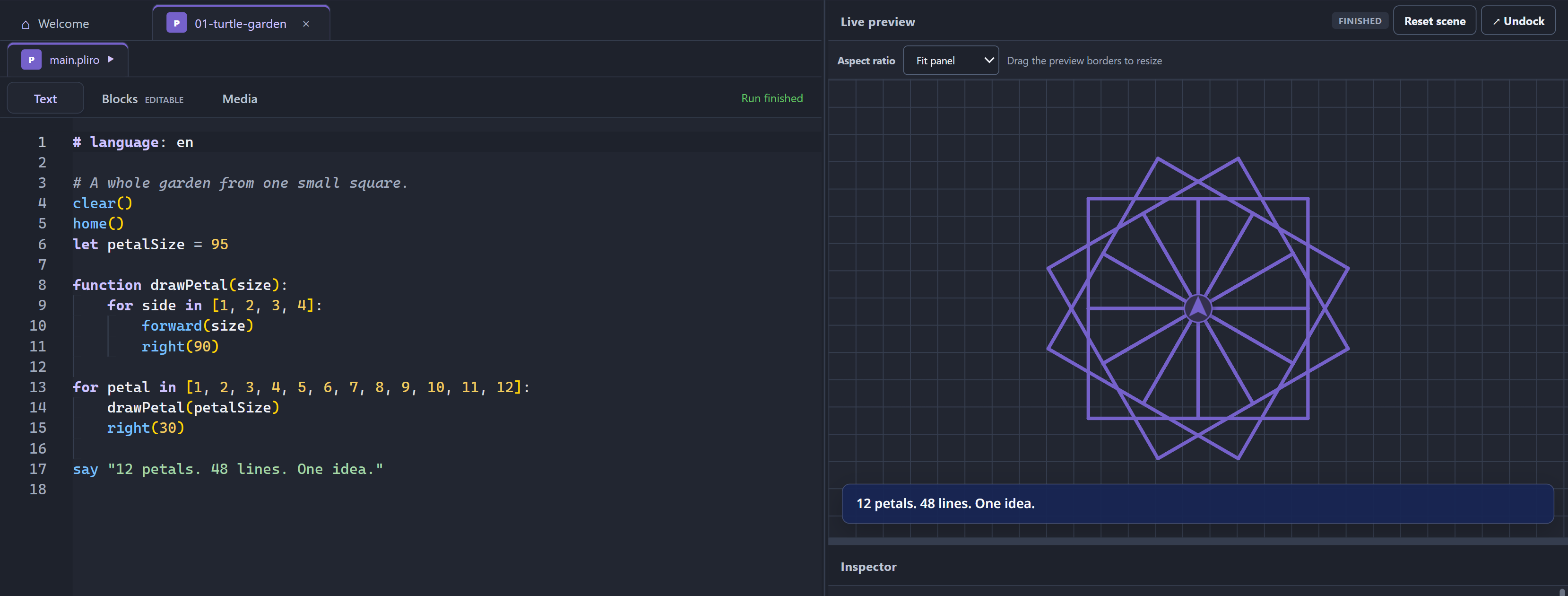
A function and a loop turn a small square into a garden of petals.
Your first run
- Install and open the IDE, then choose a built-in example or open a saved Pliro program.
- Look at the code in the Text tab. Choose Run to execute it.
- Watch the Live preview for drawings and games. Use the console for text output and diagnostics.
- Change a number, such as a turtle’s distance or turn angle, and run the program again.
- Save your work so you can return to it later.
Saving and running do different jobs. Saving keeps your source or project; running carries out its instructions. Editing a line does not automatically restart a running program.
For a small example you can type yourself, follow Your first Pliro program, then try Drawing with the turtle.
Find your way around
| Part of the IDE | What you use it for |
|---|---|
| Project view | Organize source files and project media. |
| Text | Write and edit Pliro source code. |
| Blocks | Work with a visual representation of the same program. |
| Media | Import pictures and sounds, or create pixel sprites. |
| Live preview | See turtle drawings, scenes and games while they run. |
| Console and diagnostics | Read output and find out where a problem occurred. |
| Inspector | Inspect runtime values and experiment with virtual hardware. |
Resize the panels to give the code or preview more room. Light and dark themes let you choose a comfortable appearance.
Use Run selection to try supported selected code, Pause to pause execution, Step to advance it and Stop to end a run. Pause and Stop take effect when the runtime reaches a safe stopping point. See Running and stopping a program for more detail.
Text and blocks describe the same program
The Text and Blocks tabs are two ways to work with one Pliro program. Blocks make loops and nested instructions visible; text gives you a compact view as your program grows. A construct that does not have an editable block must be preserved as code or identified as unsupported, rather than silently disappearing.
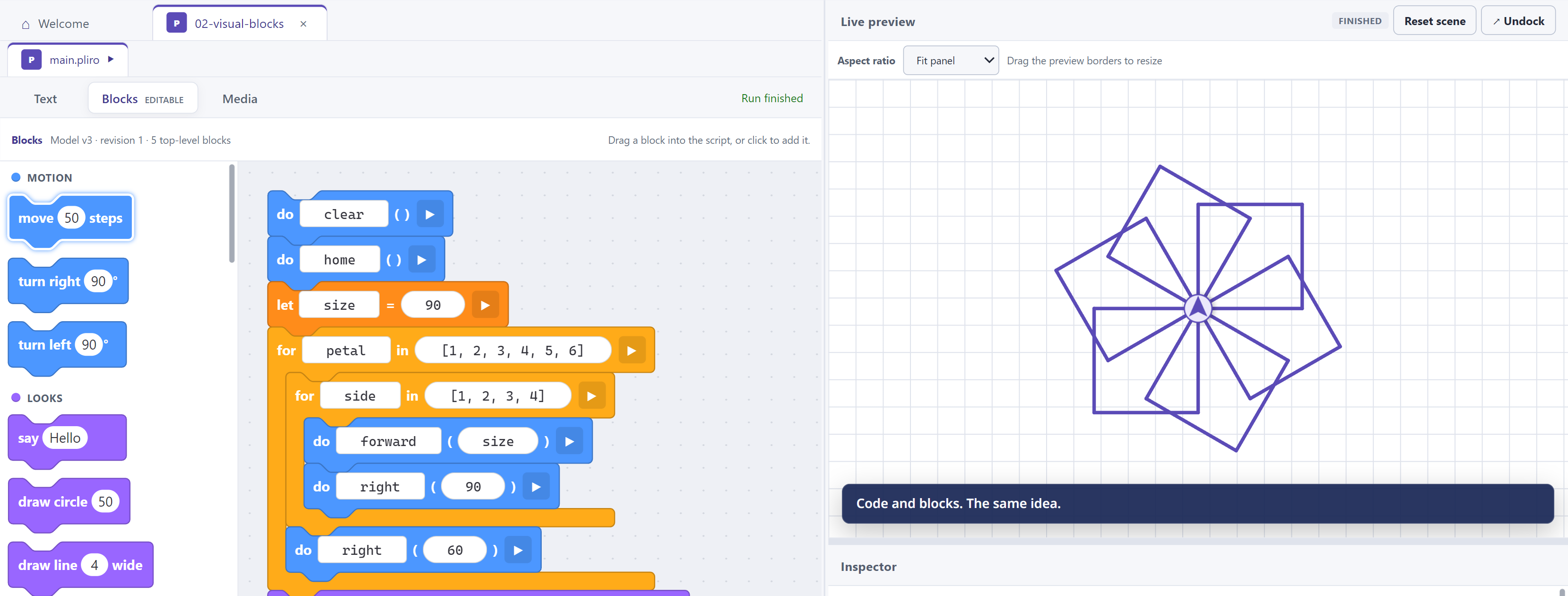
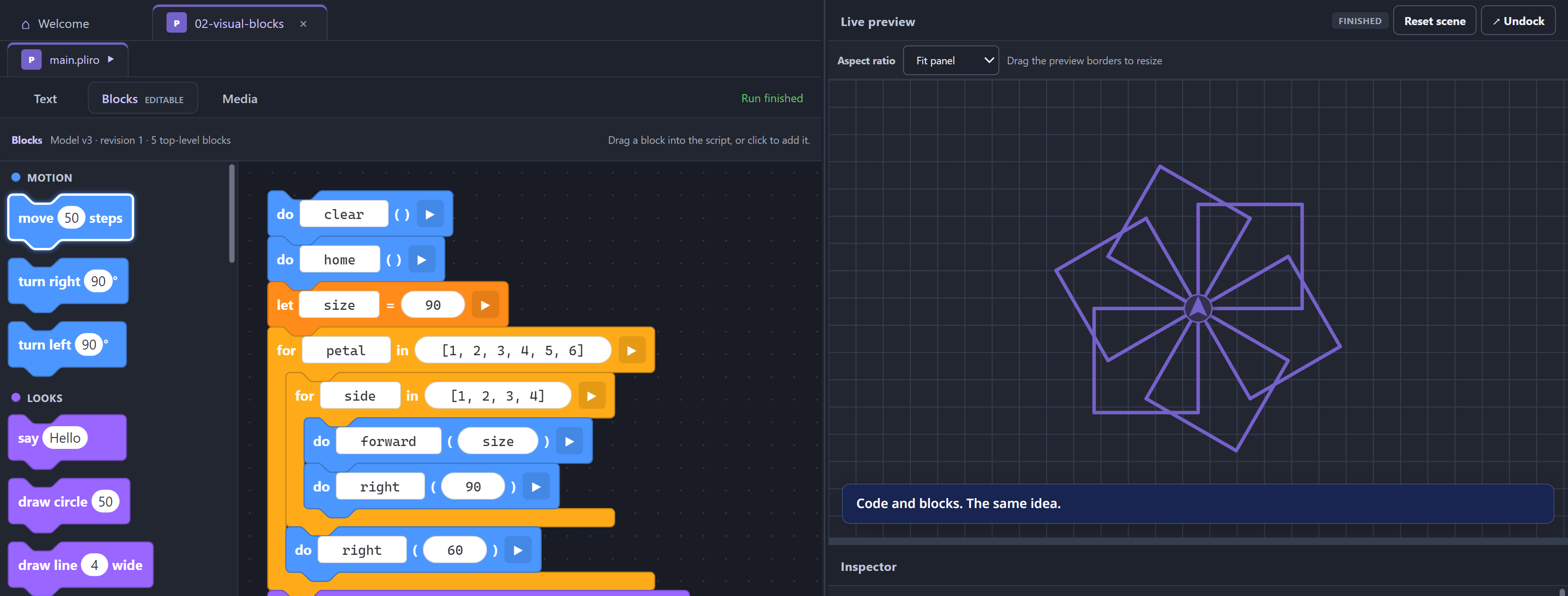
The outer loop chooses a petal; the inner loop draws its four sides.
You can also change the source syntax between English and Dutch. Pliro changes language keywords and known function aliases while keeping your own names and string contents. Read Changing the language of your code.
Find blocks and arrange your canvas
Use Search blocks above the toolbox to filter by a block name or category. Click a category heading to collapse or expand it. Searching reveals matching blocks in collapsed categories; clearing the search restores your chosen groups.
Use + and −, or Ctrl + mouse wheel, to zoom between 35% and 200%. Click the percentage to return to 100%. Drag empty canvas to pan, and choose Fit blocks to bring the program into view.
Drag a numbered Stack handle to move a whole chain around the canvas. You can also focus its handle and use the arrow keys; hold Shift to move faster. Press Escape during a drag to cancel it. Arrange stacks tidies the layout. Stack numbers follow source order: moving a stack on the canvas does not change execution order. Use the existing block move controls to change the program. Your layout stays with the document during this IDE session and resets when you restart the IDE.
Create sprites and keep your media together
A sprite is a picture your program can move. In Media, choose New sprite, pick a size and color, and draw on the pixel grid. Save the sprite to add it to your project. Keep related source files and media in a portable .bipli project so they travel together.
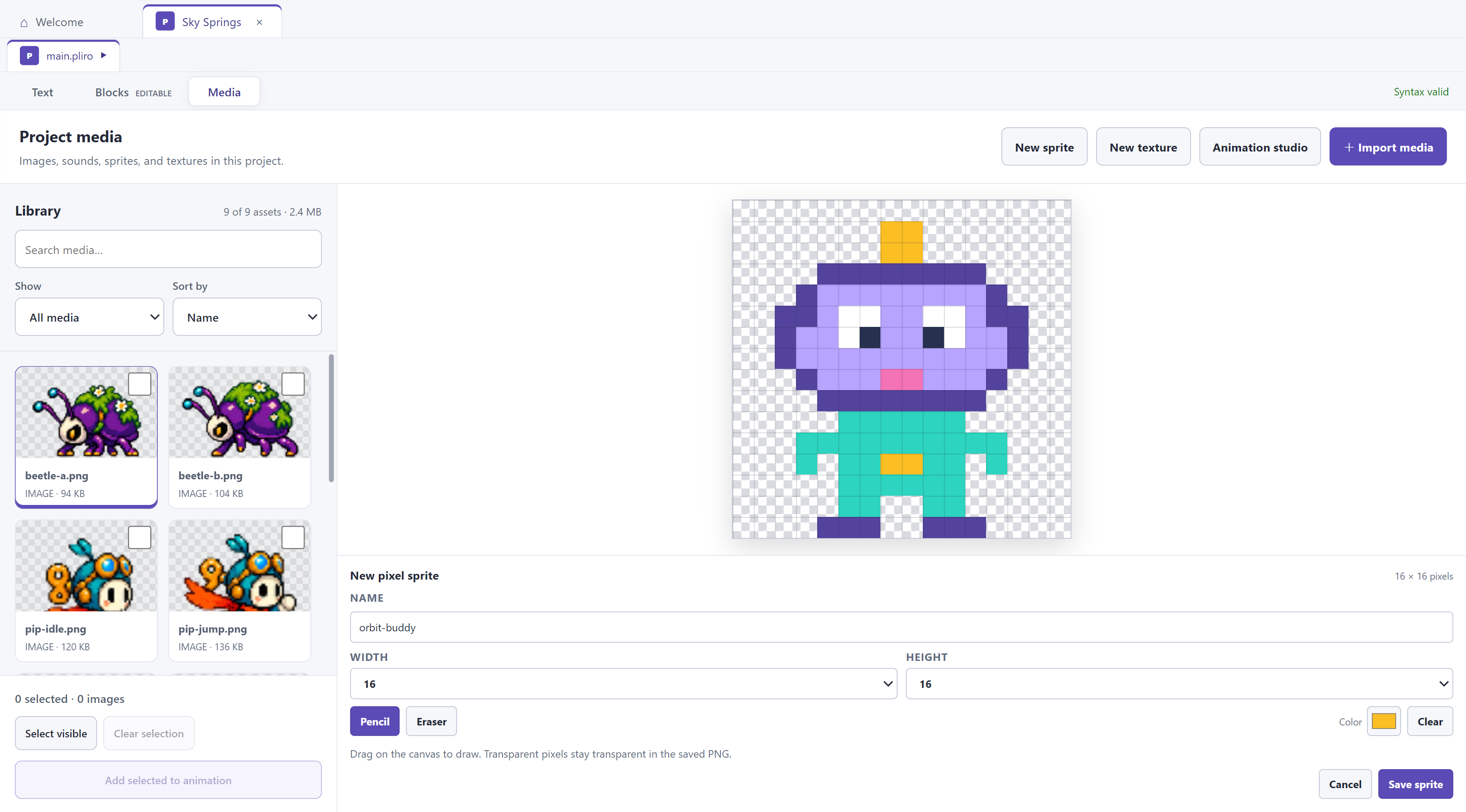
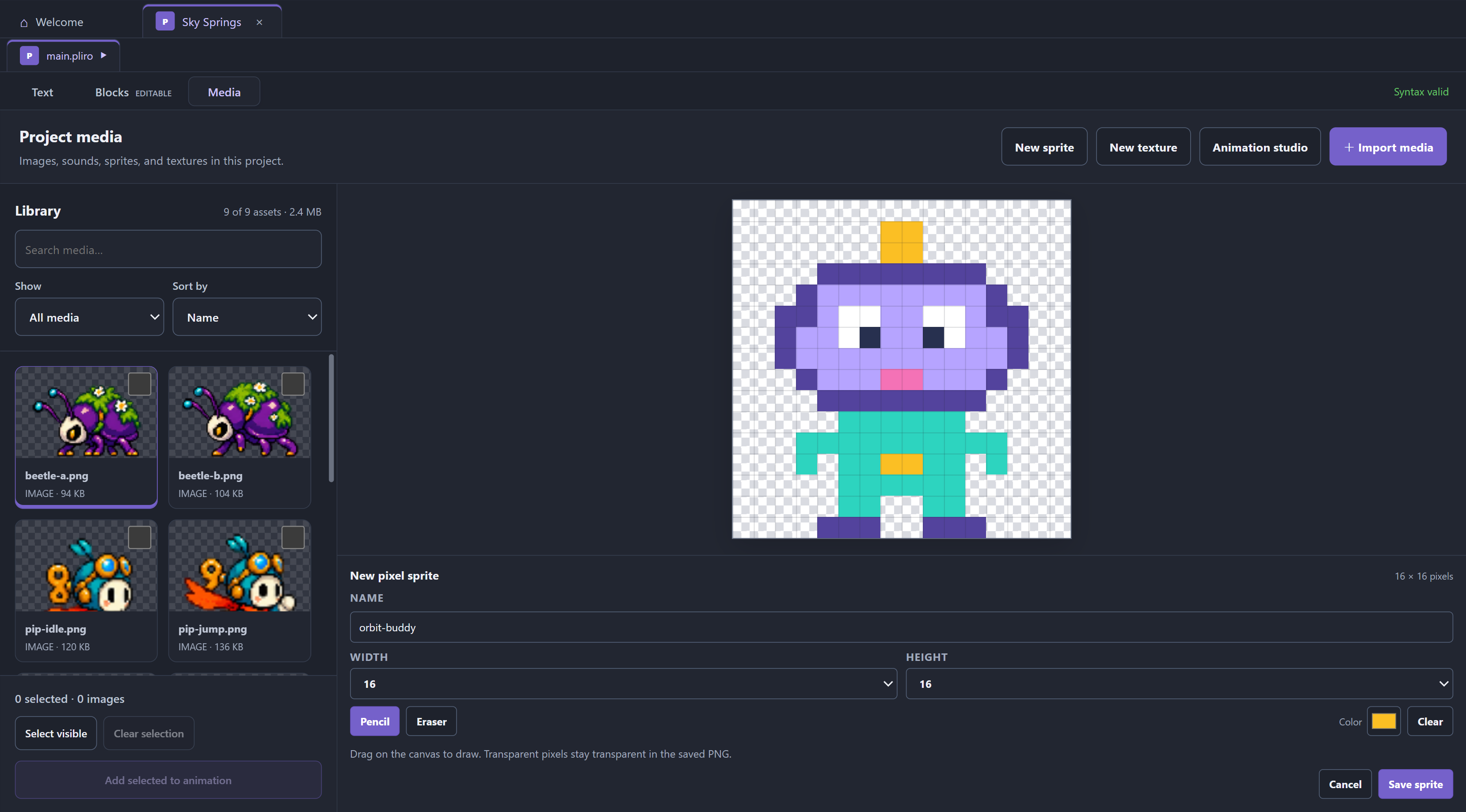
Draw a character in the IDE and use it with the other pictures in your project.
Continue with Adding pictures and sounds and Sprites: pictures you can move.
Explore a complete game
Open the Sky Springs example to explore a larger project. Run it, use the arrow keys to move and Space to jump, then pause to compare the scene with the code. Try changing one thing at a time so you can see which instructions control the result.
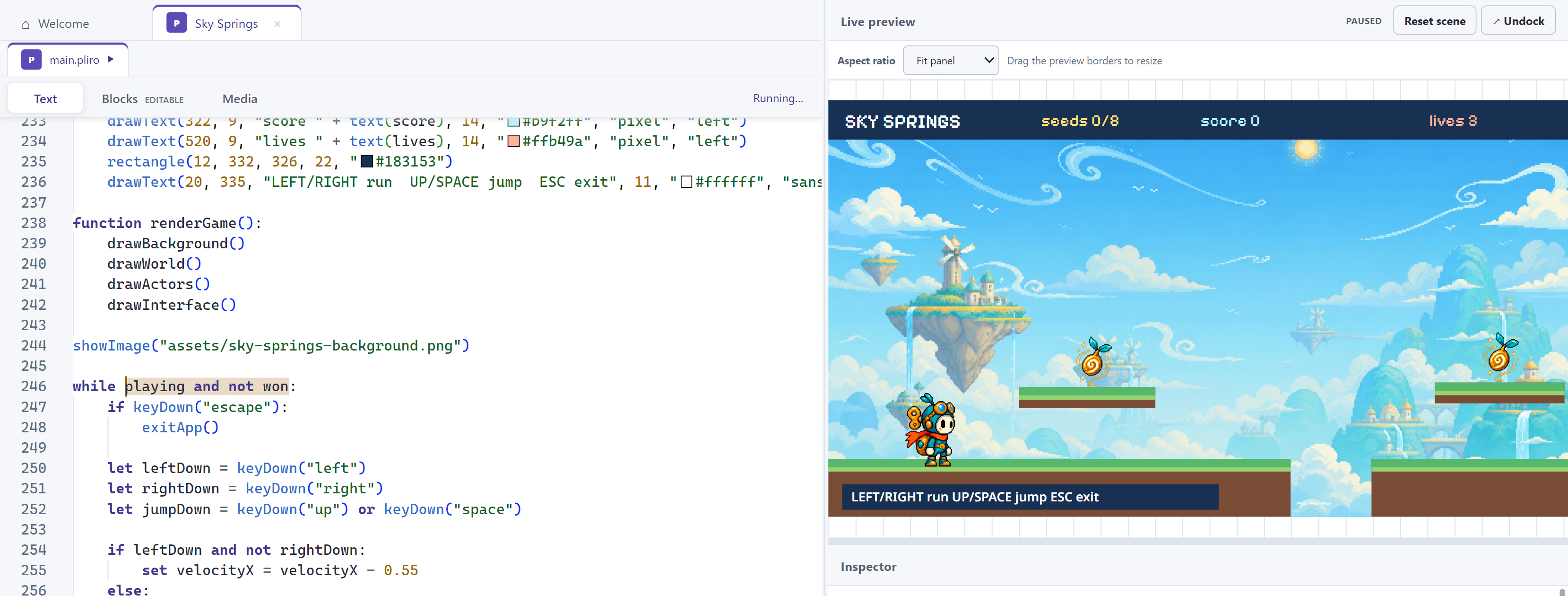
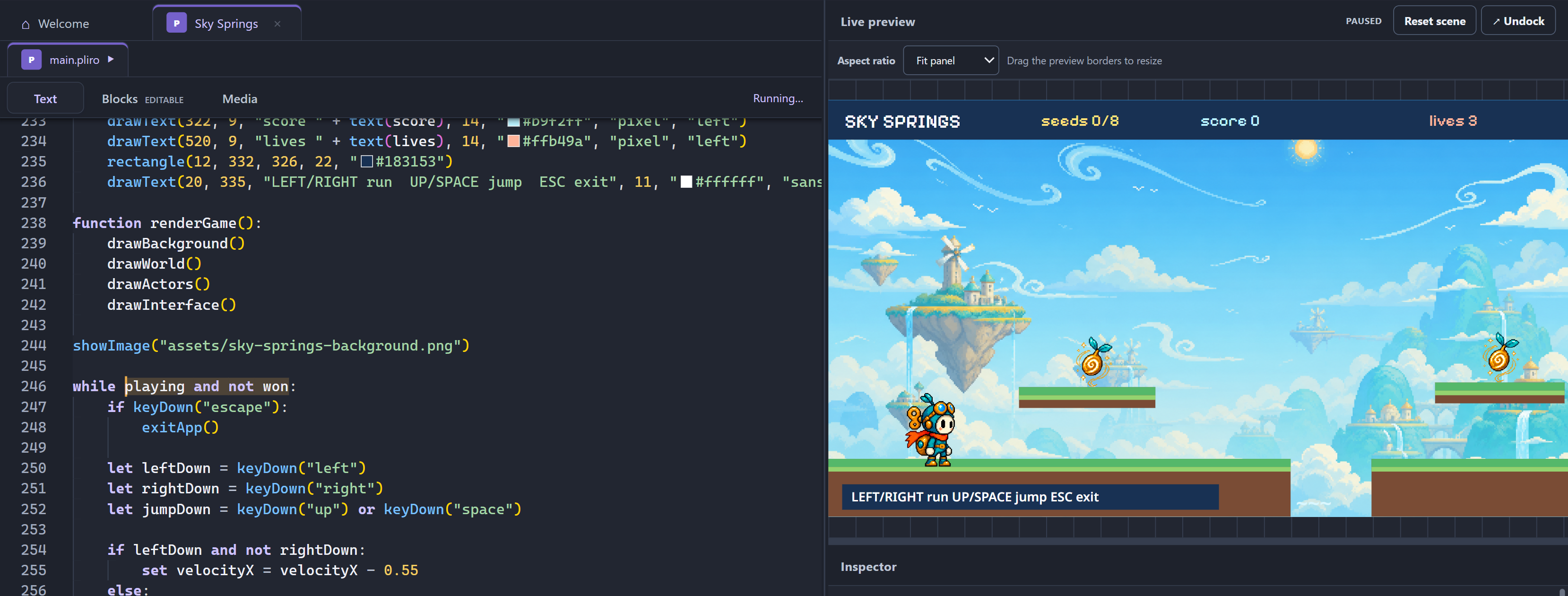
A complete game brings drawing, sprites, input and repeated updates together.
You can also build 3D worlds or use the Inspector’s virtual hardware to try GPIO pins. Virtual hardware simulates components; it does not mean a physical Raspberry Pi is connected.
Music, forms and project tools
In Blocks, open the music button beside a score, including scores stored inside maps. Edit scores lets you choose a song and part. Compose song opens the shared arrangement with multiple tracks, instruments, volumes and tempo changes. Metronome, count-in and mute/solo help you audition it; Edit notes opens the staff editor with optional MIDI keyboard entry. The compact Lucide buttons show their action in a tooltip. Read Compose music for the workflow and what gets saved.
Create music with the GM orchestra and composer, design forms, paint textures and assemble frames in the Animation studio. These tools are included in Learner. Display settings keep rendering quality and window size with your project. Explore Echo Conservatory and Orbit Orchard to see the features work together.
For activation, export rights and the separate Classroom entitlement, see Editions.
Build and share an application
When your program is ready, Build lets you choose an output target and create an application. A native exported application can run without the Pliro IDE. Choose a target supported by the destination computer; see Building and distributing applications.
Keep the editable source or portable project as well as the built application. The project is what you return to when you want to change something.
Complete examples · Understanding error messages · Sharing your project safely
Also in your browser
The Pliro playground also has Text / Blocks, a searchable block palette, shared undo and the same music editors. It uses compact icon toolbars and adapts to narrow screens. The public browser editor is a quick way to try code; the desktop IDE also provides project management, media and native builds.