Compose music: orchestra, scores and MIDI input
Build a tune from piano, strings, bass and percussion, then hear the parts play together. Pliro includes 128 General MIDI instrument sounds, 47 drum sounds and the original chip, bell, pluck and flute voices. The music tools are included in Learner and are also available in the browser playground.
Start an orchestra
Each part is a list containing its instrument, written notes and optional volume. One startOrchestra call starts every part together:
# language: en
setVolume(60)
let piano = ["gm.acoustic-grand-piano", "C4+E4+G4:2 F4+A4+C5:2", 75]
let bass = ["gm.acoustic-bass", "C3:2 F2:2", 65]
let drums = ["drums", "C2+F#2:1 D2+F#2:1 C2+F#2:1 D2+F#2:1", 35]
startOrchestra("song", [piano, bass, drums], 120, true)
wait(8)
stopTrack("song")
Try lowering the drums’ volume. All parts share the same tempo and starting time. A shorter part rests until the longest part ends, then they repeat together when looping is enabled. setTrackVolume("song", 40) changes the whole orchestra; stopTrack("song") stops it.
The instrument bank uses compact synthesis, so it works offline without downloading samples. It offers the full GM instrument palette, rather than recorded orchestral realism. Instrument IDs stay the same in Dutch and English.
Read and write a score
| Written notes | Meaning |
|---|---|
C4:1 |
Middle C for one beat |
C#4:0.5 |
C sharp for half a beat |
Bb3:2 |
B flat for two beats |
R:1 |
A one-beat rest |
C4+E4+G4:2 |
Three notes played together for two beats |
Separate events with spaces. A chord has one shared duration and up to eight different pitches. With drums, pitches choose percussion sounds: C2 is bass drum, D2 is snare and F#2 is closed hi-hat. Drum pitches range from B1 to A5.
In Blocks, choose the music-note button beside a literal score. Select a note on the staff to change it, use the duration shortcuts, add rests, or enter the written notes directly. Additional chord notes accepts pitches such as E4+G4. The editor has its own undo/redo and preview. Use melody applies the edited score to your source; Cancel leaves it unchanged.
The melody editor’s instrument and tempo controls affect its preview. Change the corresponding block fields or composer controls to save those settings for program playback.
Edit songs stored in maps
Music remains editable when it is stored in a map or a list of songs, as in the jukebox. In Blocks, choose Edit scores beside the song data. Search for a song or part, select it, then choose Edit melody for one score or Compose song for the whole arrangement.
The composer recognizes song maps with bpm and parts. Each part has a literal score and instrument, with optional role and volume. A song can also have title and tempoChanges. Ordinary computed expressions remain editable in Text; the composer does not run your program to guess their values.
Arrange several tracks
The composer brings the tracks, note overview and playback controls into one compact window. Lucide icon buttons have localized tooltips and accessible names: hover over a button to find its action, or reach it with Tab.
- Select a track to change its name, instrument, volume or written notes.
- Choose Edit notes to open its staff editor or enter notes from a MIDI keyboard.
- Use Add track, Duplicate track or Remove track to shape the arrangement.
- Use Play all tracks to hear the parts together. Mute and Solo help you listen to individual parts.
- Choose Use composition to save the arrangement as one source edit.
The overview shows when notes sound; select a track and use its note editor to change them. Names, notes, instruments, volumes and tempo changes are saved. Mute, solo and practice settings affect preview only. Local undo/redo works on the draft; after applying it, the editor’s undo restores the previous source. Existing comments and other song fields are preserved. Existing literal beats, seconds and time fields follow the edited duration.
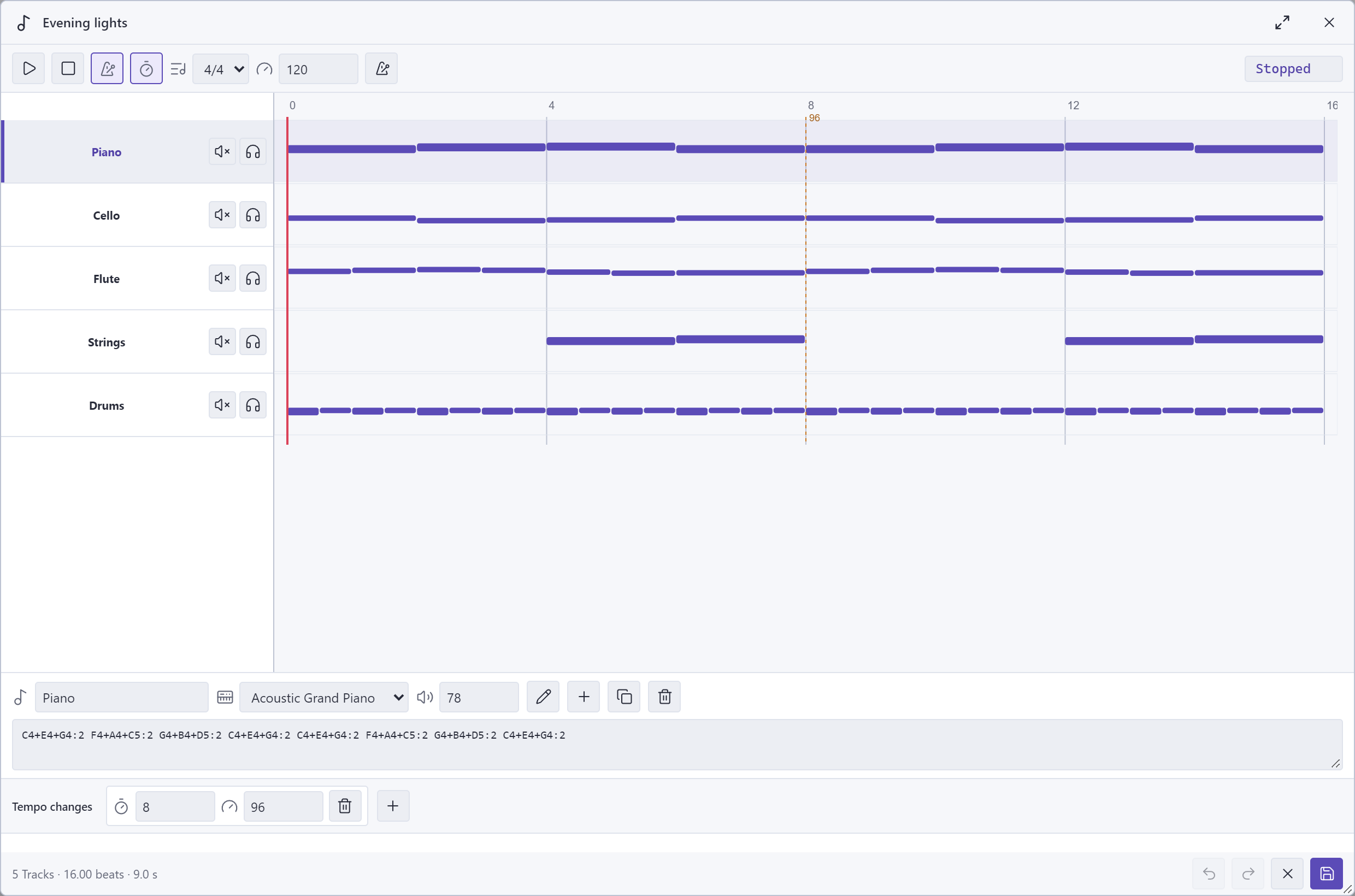
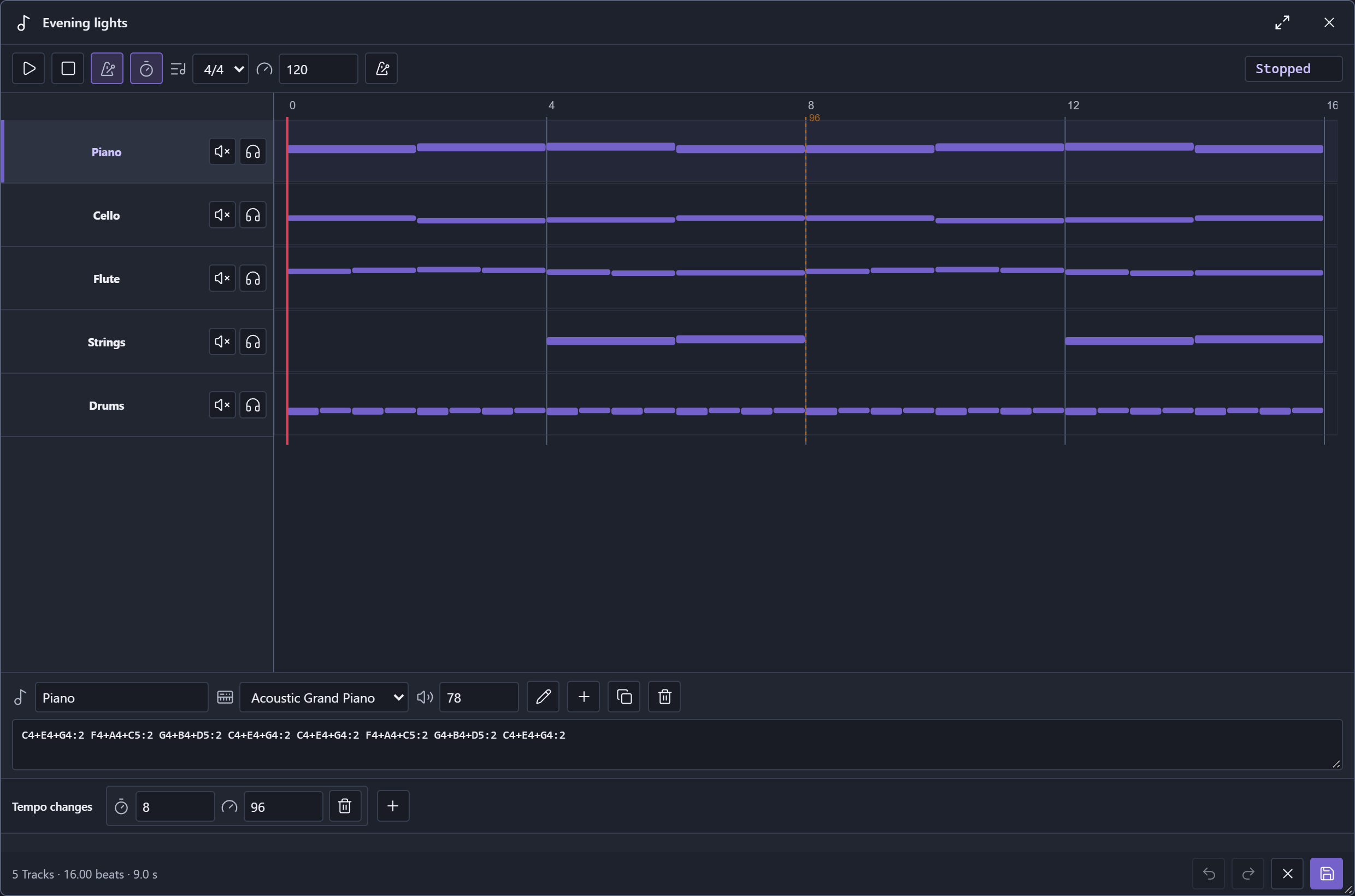
The current shared composer, captured in the browser playground. The desktop IDE uses the same composer.
Practice with a metronome
Enable Metronome to hear clicks during composer playback. Count-in adds a bar before the music begins. Beats per bar selects 2/4, 3/4, 4/4 or 6/4, with an accent on the first beat. The clicks follow the song’s tempo changes.
Start metronome plays a practice click at the starting tempo without playing the song. The one-score melody editor also has a practice metronome. These controls help you compose; they do not add click notes or a time signature to your saved song.
Change tempo during a song
The composer’s Starting tempo sets the initial BPM. Add tempo change creates a marker with a beat position and new BPM. Positions start at zero: beat 4 comes after four beats. Markers affect every part from that position onward; a held note stays held across the change.
This complete example slows down after four beats. Open its song map in Blocks to experiment:
# language: en
let song = {
    "title": "Evening lights",
    "bpm": 120,
    "tempoChanges": [[4, 90]],
    "seconds": 4.666667,
    "parts": [
        {"role": "Piano", "instrument": "gm.acoustic-grand-piano", "volume": 75, "score": "C4+E4+G4:2 F4+A4+C5:2 G4+B4+D5:2 C4+E4+G4:2"},
        {"role": "Cello", "instrument": "gm.cello", "volume": 65, "score": "C3:2 F2:2 G2:2 C3:2"}
    ]
}
let orchestra = []
for part in song.parts:
    set orchestra = orchestra + [[part.instrument, part.score, part.volume]]
startOrchestra("song", orchestra, song.bpm, false, song.tempoChanges)
wait(song.seconds)
The final argument passes song.tempoChanges to playback. Merely adding a field to a map does not change what an audio call does. The first four beats take two seconds at 120 BPM; the next four take about 2.67 seconds at 90 BPM.
Tempo must be 20–400 BPM. Markers must have increasing positions before the end of the longest part. A marker at zero replaces the starting tempo. Markers repeat on each loop. For a single score, startMelody accepts the same list as its sixth argument. See startOrchestra and startMelody.
Enter notes with a MIDI keyboard
MIDI input is step entry in the melody editor. It records pitches using the duration you choose, rather than recording the timing of a performance.
- Connect the keyboard’s USB MIDI connection, or its MIDI OUT through a MIDI interface’s IN.
- Open Edit notes for a composer track, or open any literal score’s melody editor.
- Choose Connect MIDI and allow MIDI access if prompted.
- Select the input in MIDI keyboard, then choose a note duration.
- Play a note or chord and release every key. The editor inserts it after the selected note, or at the end if no note is selected.
The activity indicator responds as soon as note messages arrive. Insertion waits until all keys are released; chords may contain up to eight pitches. Choose a new duration for the next gesture, and add rests with Add rest. Close the editor or choose Disconnect MIDI to release the input.
If no ports appear, check the USB data connection and reconnect before trying Connect MIDI again. An audio cable alone does not carry MIDI. If a port cannot open, close other music apps that may be using it, reconnect and retry. A permission-denied message requires allowing MIDI access; an unsupported-window message means this host does not expose MIDI input. Manual note editing remains available.
This feature depends on the browser or desktop host’s Web MIDI support. It does not import MIDI files, record velocity, sustain pedals, controller changes or performance timing, or send music back to external instruments. Your saved Pliro program needs no MIDI keyboard to play.
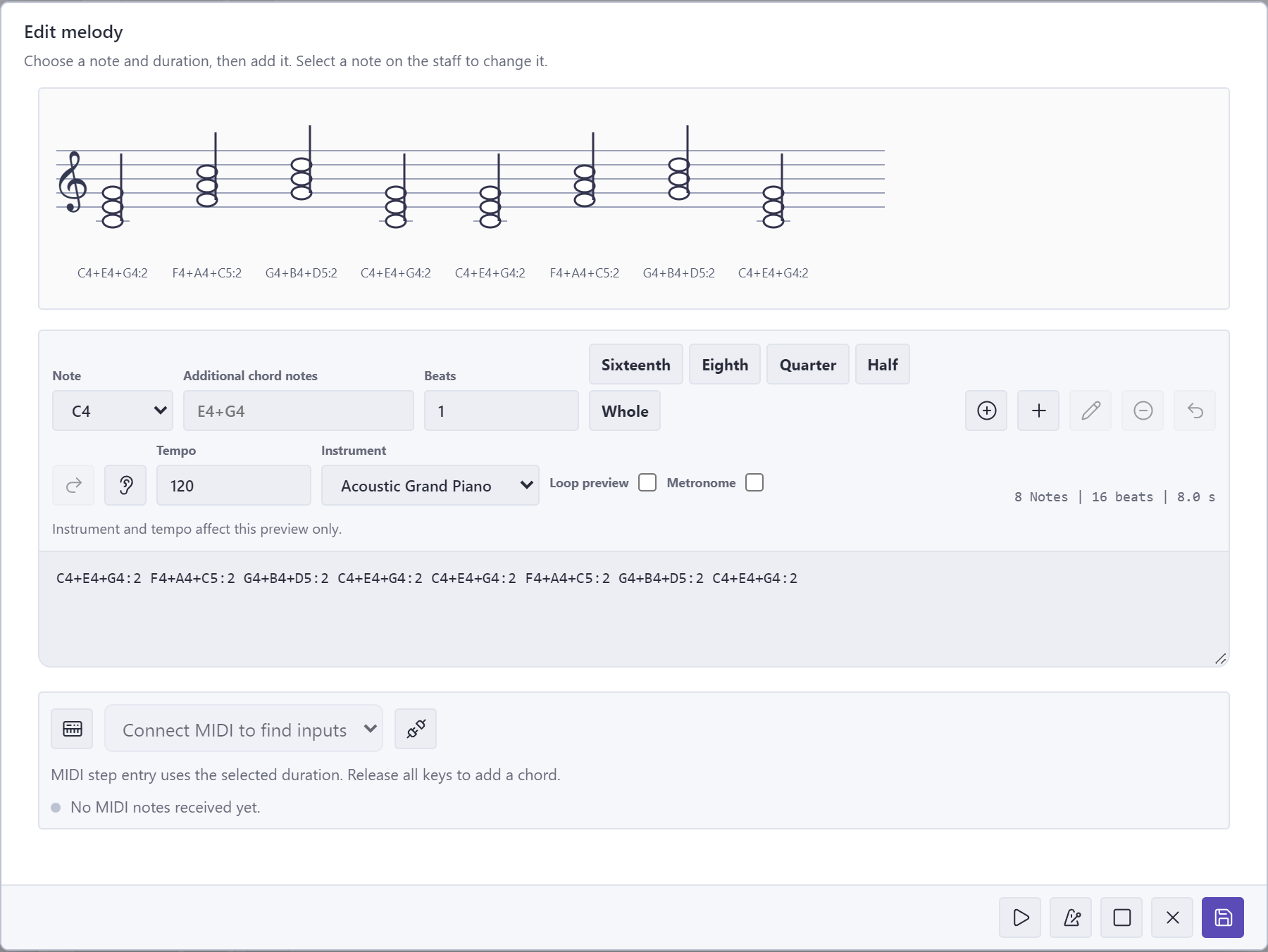
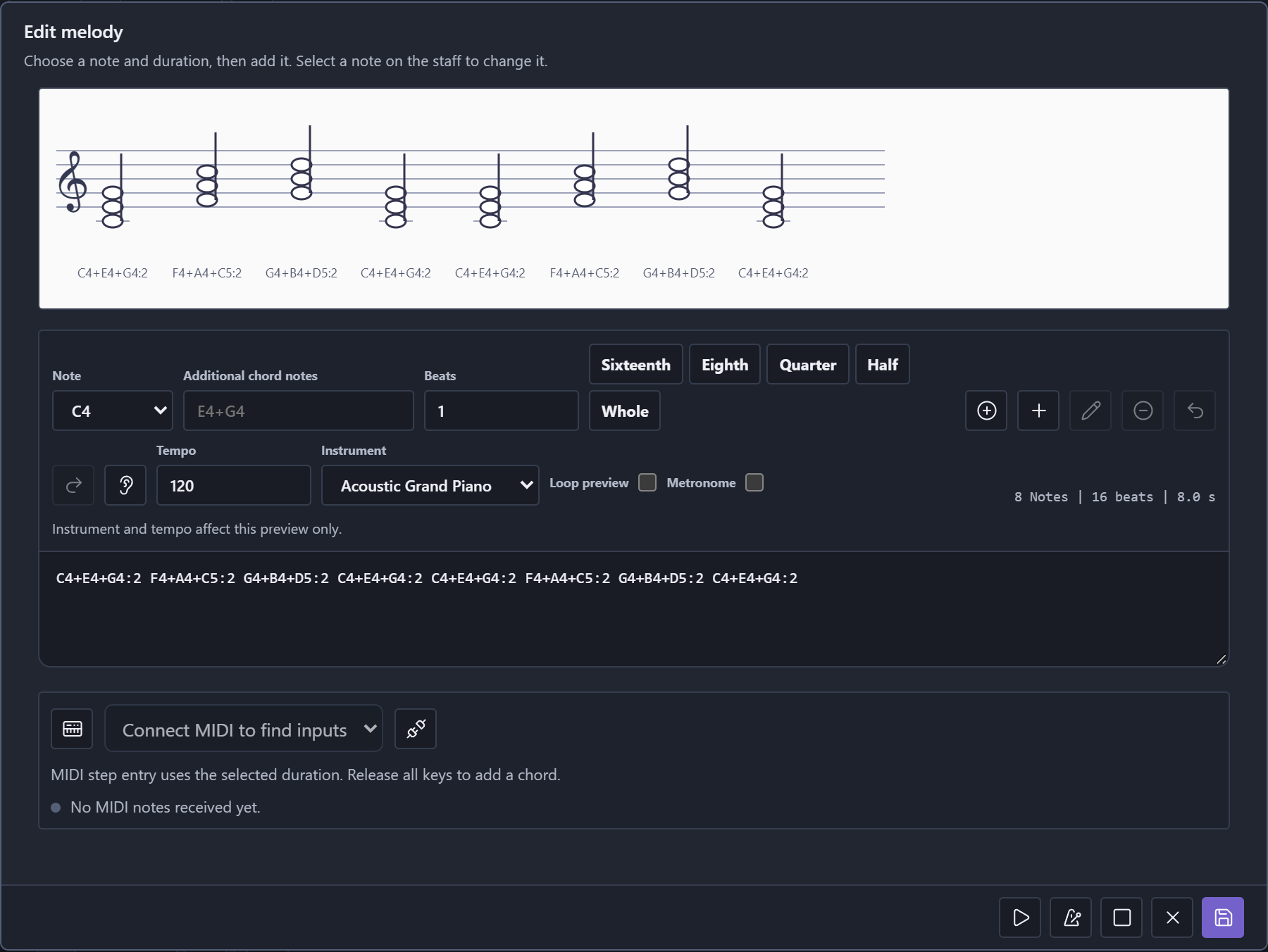
The melody editor in the browser playground. Connect MIDI searches for input ports; this capture does not show a connected keyboard.
Recorded sounds and playback limits
Import recorded effects into a portable project through Media in the IDE. playSound("assets/jump.wav", 70) plays a one-off effect; startSound("ambience", "assets/wind.wav", true) starts a looping track. Use setTrackVolume and stopTrack to control it.
Volumes run from 0 to 100. Master, track and orchestra-part gains multiply. Starting audio on an existing name replaces its audio while preserving its track volume. playNote("C5", 0.5, 120, "gm.flute") adds a single note without replacing other tracks.
Playback does not block the next instruction. Keep looping music alive with event handlers, a game loop or a positive wait. Normal program completion stops repeating tracks; finite sounds may finish. Pause suspends audio, and Stop/Reset clean up playback.
There are at most 16 named tracks, 16 parts per orchestra and 32 simultaneous sounding notes. At capacity, the oldest sounding note is retired. Scores contain up to 4096 events; an orchestra shares that event limit across its parts. Each score lasts at most 4096 beats, each event lasts 1/64–64 beats, and tempo maps contain at most 256 markers.
Synthesis works in the IDE, playground and supported native Windows/Linux/Raspberry Pi exports without sound assets. Recorded codecs depend on the host; supported PCM WAV is the portable native choice. The text-only CLI and phone preview do not play this audio.
Try the orchestra example · Playground guide · Game projects