# The playground: text, blocks and live preview
[Programming guides](README.md)
[Open the Pliro playground](https://playground.pliro.wiki/?lang=en) to write and run a program in your browser. Switch between **Text** and **Blocks**, watch the live preview and download your source. You can begin without installing the desktop IDE.
## Try the same program in two views
1. Open the playground and choose **Run** in the toolbar.
2. Select **Blocks** above the editor.
3. Change a number inside a movement block.
4. Switch back to **Text** to see the updated source.
5. Run again to see what changed. Use **Undo** to restore the previous edit.
Text and blocks are two views of the same program. Changing a field, adding a block or saving a music score updates ordinary Pliro source. Comments and unchanged source formatting are preserved.
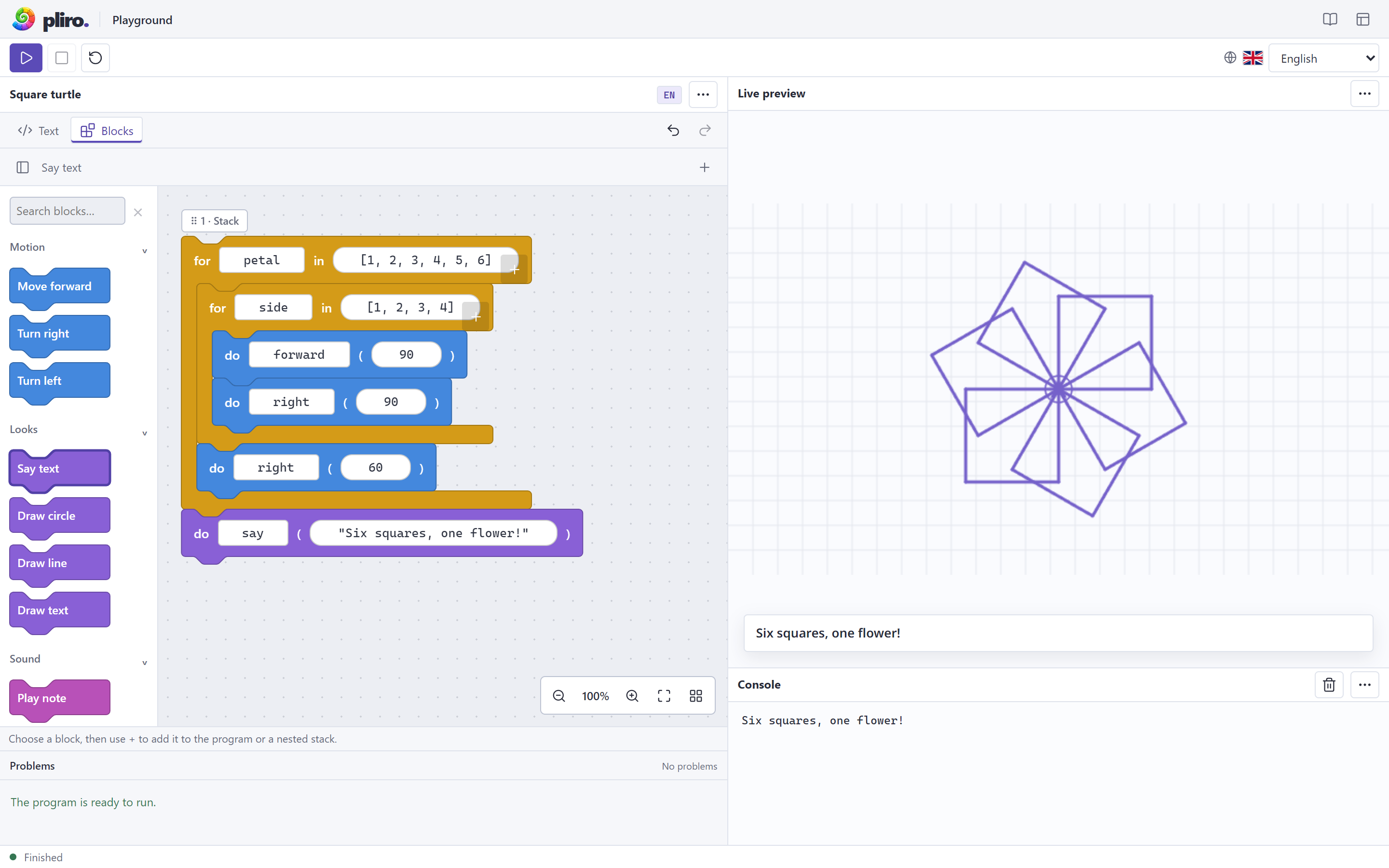
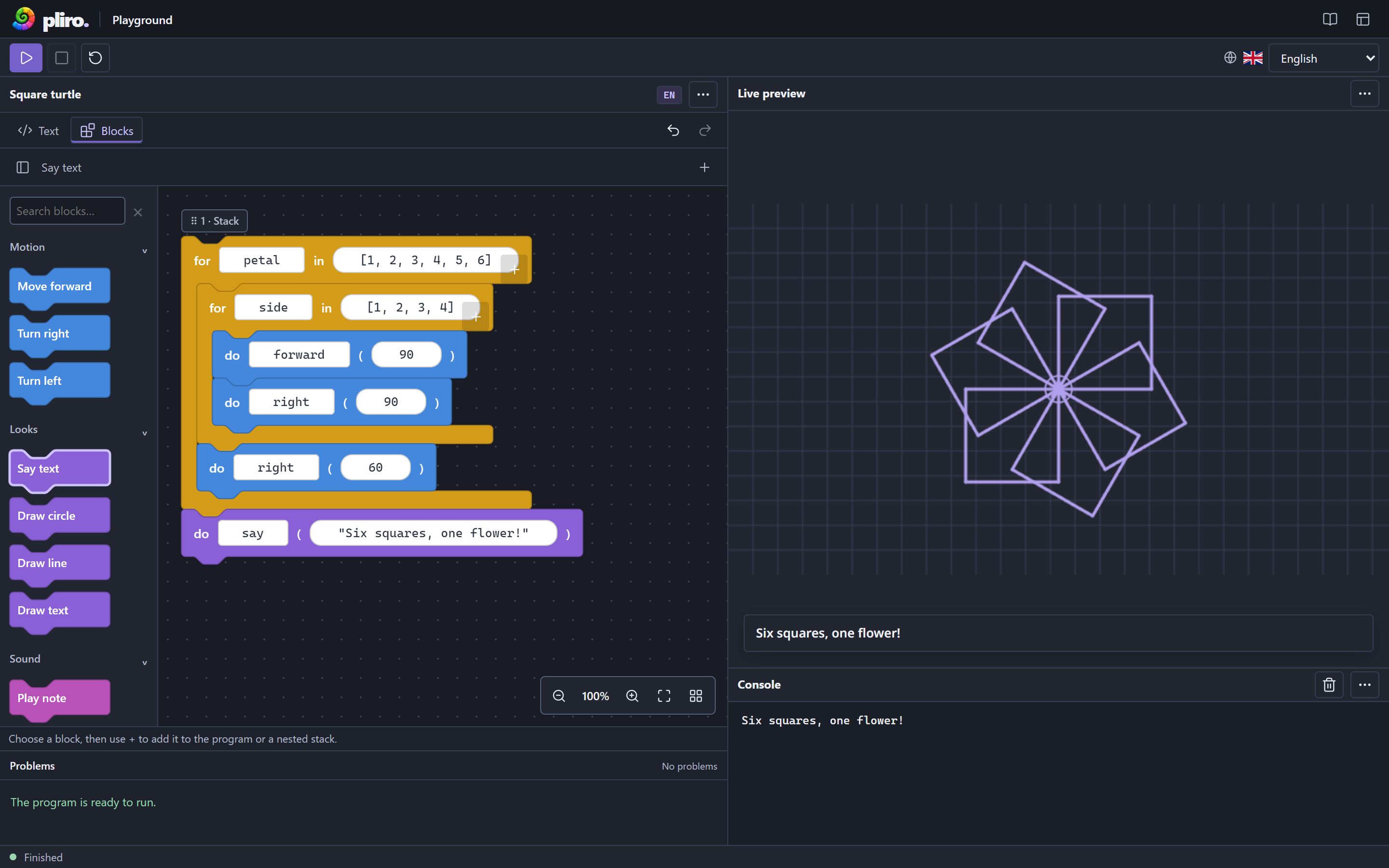
*The browser playground in Blocks view. The image follows the wiki's light or dark theme.*
## Build and edit with blocks
Search the block palette or open a category such as **Motion**, **Sound** or **Control**. Select a block, then choose **Add selected block** in the toolbar to append it to the program. Use the **+** inside a loop, condition or function to insert the selected block into that nested section.
Edit numbers, text and other expressions in their fields. Use a block's up/down buttons to change its order, or **Move block to another position** to choose a destination in another section. Escape cancels a move. The trash button deletes the block; **Edit in Text** reveals its source.
Drag empty canvas to pan. Use the zoom buttons or **Fit blocks** to bring the program into view. **Arrange stacks** tidies the layout. Dragging a stack around the canvas changes its position on screen; the block move controls change execution order.
The palette can be hidden for more space. On narrow screens it starts collapsed, and the preview appears below the editor.
## Keep your source and undo your edits
The toolbar's **Undo** and **Redo** work across Text and Blocks, including applied music edits. Ctrl+Z and Ctrl+Shift+Z also work when the source editor or block workspace has focus; use Cmd on a Mac. A text field inside a block retains its own normal text-editing shortcuts.
If the source has incomplete syntax, the playground keeps it and asks you to repair it in Text before showing editable blocks. Code without a supported visual editor remains accessible as source. A rejected block edit leaves the previous source intact.
Editing controls are disabled while a program runs. Stop the run before changing the program. Download your source when you want to keep a copy; undo history belongs to the current editing session.
## Compose music
Open the [orchestra example](https://playground.pliro.wiki/?example=orchestra&lang=en), select Blocks and use a score's music button to edit its notes.
Song maps, including the jukebox's nested song and part data, offer **Edit scores**. Select a part for **Edit melody**, or choose **Compose song** for a supported literal song map. The shared composer includes multiple tracks, instrument and volume controls, mute/solo preview, a metronome, count-in and tempo changes. The note editor accepts optional MIDI keyboard step entry when supported by the browser.
Follow [Compose music](music.md) for a complete song-map example, keyboard setup and the difference between saved composition settings and preview controls.
## Find the controls
The playground uses compact toolbars and Lucide icons. Hover over a button for its localized tooltip, or navigate with Tab. **Run**, **Stop**, source download, undo/redo and the panel menus keep accessible names even when only an icon is visible.
Light and dark appearance follow your device setting. The globe control changes the interface and diagnostic language. It does not translate or replace your existing source, names or strings. Declare the code's language with `# language: en` or `# language: nl`.
Useful text-editor shortcuts:
| Shortcut | Action |
|---|---|
| Ctrl+Enter / Cmd+Enter | Run |
| Tab / Shift+Tab | Indent / outdent |
| Escape, then Tab | Leave the text editor with the keyboard |
| Shift+F10 | Open the focused area's actions menu |
The **⋯** buttons expose editor, preview and console actions without a right-click. In an embedded wiki example, open the full playground to use the complete Text/Blocks workspace.
## Work with a local project
The CLI's local `pliro playground` host can open a project with several source files. In that mode, Blocks shows the active source file, and each file has its own source and undo history. Switching files updates both views. Running still uses the host's project compilation, including its modules and project permissions.
These project controls belong to the local hosted mode. The public static playground starts with a single source document. For portable projects, media import and native application builds, use the [desktop IDE](pliro-ide.md).
[Your first program](getting-started.md) · [Drawing with the turtle](turtle.md) · [Compose music](music.md) · [Understanding errors](diagnostics.md)